Get started
From installing Blobs to your first local conversation.
Install the app
- Open the latest Blobs release.
- Download the
.apkfile to your Android phone. - Open it and follow Android’s installation prompt. If asked, allow installation from the app you used to open the APK. You can turn that permission off afterward.
- Open Blobs and tap Get started.
Blobs targets Android 9 and newer on ARM64 and x86_64. It does not declare a Play Store, Google account, or Google Play Services requirement, which is what a GrapheneOS install requires; it has not been run on a GrapheneOS build.
Choose a model
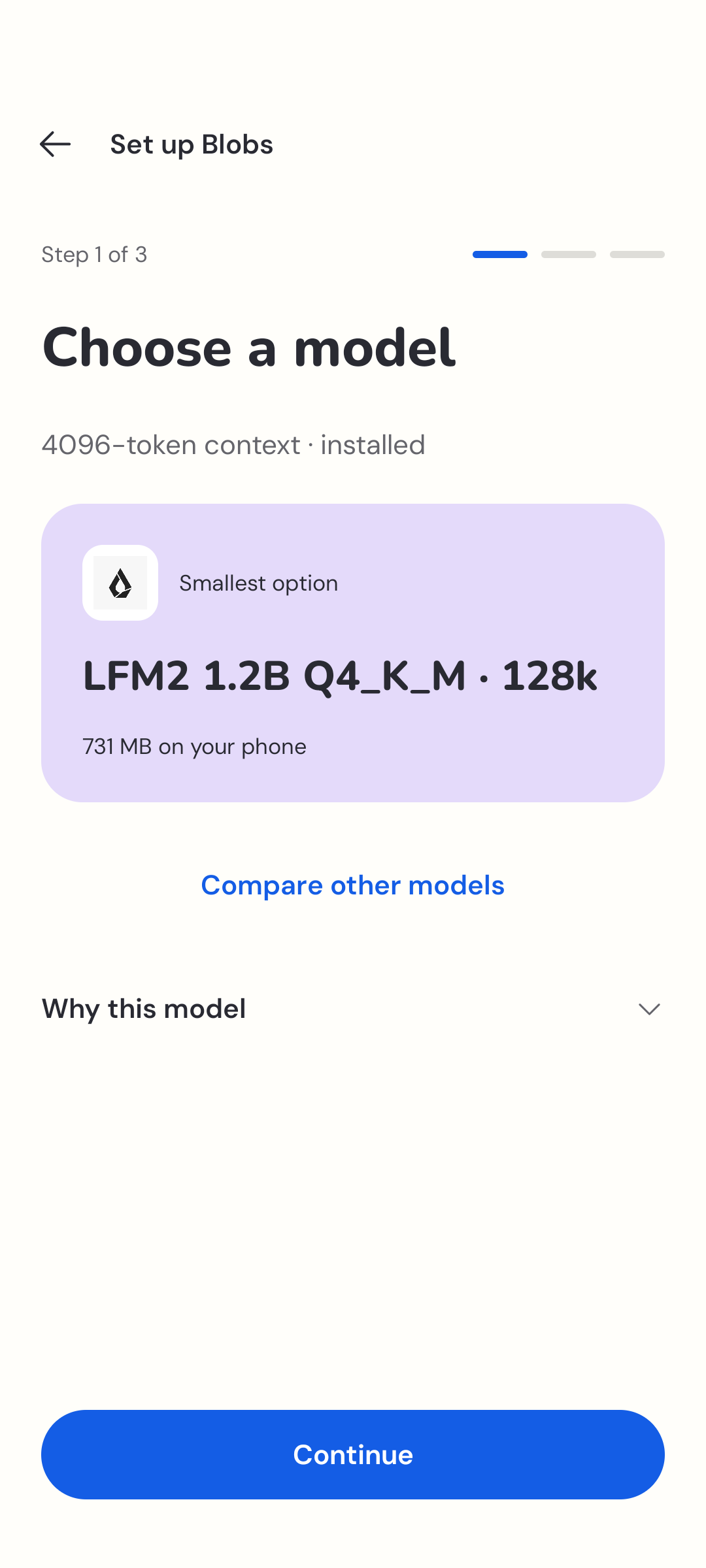
Blobs checks memory and available storage on the phone and recommends a model. This happens locally. You can accept the recommendation or choose another available model.
A model is the part that writes your answers. Larger downloads need more storage and memory; a larger model isn’t always the more comfortable choice for your phone. Start with the recommendation, then change it later in Settings → Models.
Before you tap Download, check the size and storage guidance. Keep the app open while setup finishes. An internet connection is needed for these downloads.
Read choosing a model for the current options.
Get your starter library
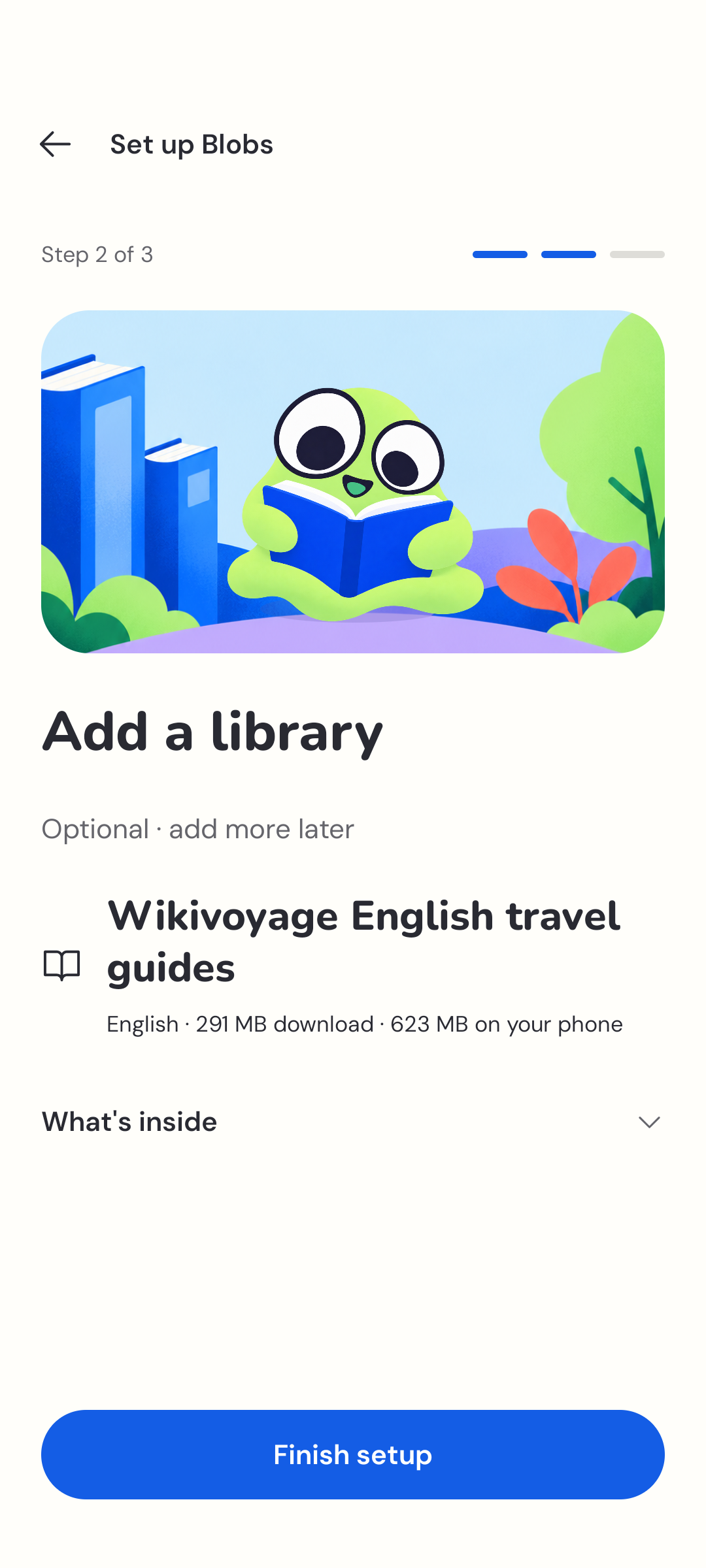
Download Wikivoyage English travel guides if you want local sources from the first conversation. It is the starter library and is optional; chat can begin with a model alone.
A library supplies reference material. It is separate from the model: adding a library gives Blobs more material to find, rather than replacing the model or training it again.
Blobs checks downloaded files before installing them. Setup continues when a model is ready; you can add the starter library now or later.
Ask your first question
Try a question about a topic in your starter library. When an answer includes citations, tap one to read the supporting passage inside Blobs.
Chat, library search, and saved sources stay on the device after installation; the 0.5.0 release ran this flow on a physical Android phone in airplane mode. Do not rely on the app for urgent or time-sensitive information.
Add more when you want
Open Library to discover optional downloads. Start with the topics you’ll actually use; you don’t need to download everything. Explore the available libraries.
If setup stops or storage runs short, see download help.